AI Product Migrator
Discover, scrape, and import WooCommerce products from any website, CSV, or JSON API — with AI-assisted detection, background processing, and optional scheduled auto-sync.
Shopify-aware
CSV & JSON import
Gemini AI-assisted
Auto-Sync
WP-Cron powered
If you’re building or growing a WooCommerce catalog from an existing supplier site, a spreadsheet, or a JSON feed, AI Product Migrator does the heavy lifting: it finds the products, reads their data, shows you exactly what it found before anything touches your store, and can then keep that catalog current on its own.
Who it’s for
Store owners migrating a catalog
Point it at a supplier’s WooCommerce or Shopify store and pull their public product listings into your own catalog.
Agencies onboarding new clients
Move a client’s existing site catalog into WooCommerce without re-typing every product by hand.
Dropshippers & catalog resellers
Keep prices and stock status current automatically as the source site changes, instead of re-importing manually.
Anyone with a CSV or JSON feed
Load a product feed straight into WooCommerce with a mapping-and-preview step, no custom import script required.
Key features
Three ways to bring products in
Website scraping
Point it at a homepage. It detects WooCommerce, Shopify, or a generic ecommerce layout, discovers product URLs from links, listing pages, sitemaps, and (for WooCommerce/Shopify) public JSON endpoints, then extracts full product data from each page.
CSV import
Load products from a CSV URL or an uploaded file, with automatic column mapping.
JSON API import
Load paginated product data from a JSON endpoint, with optional Bearer-token or API-key-header authentication.
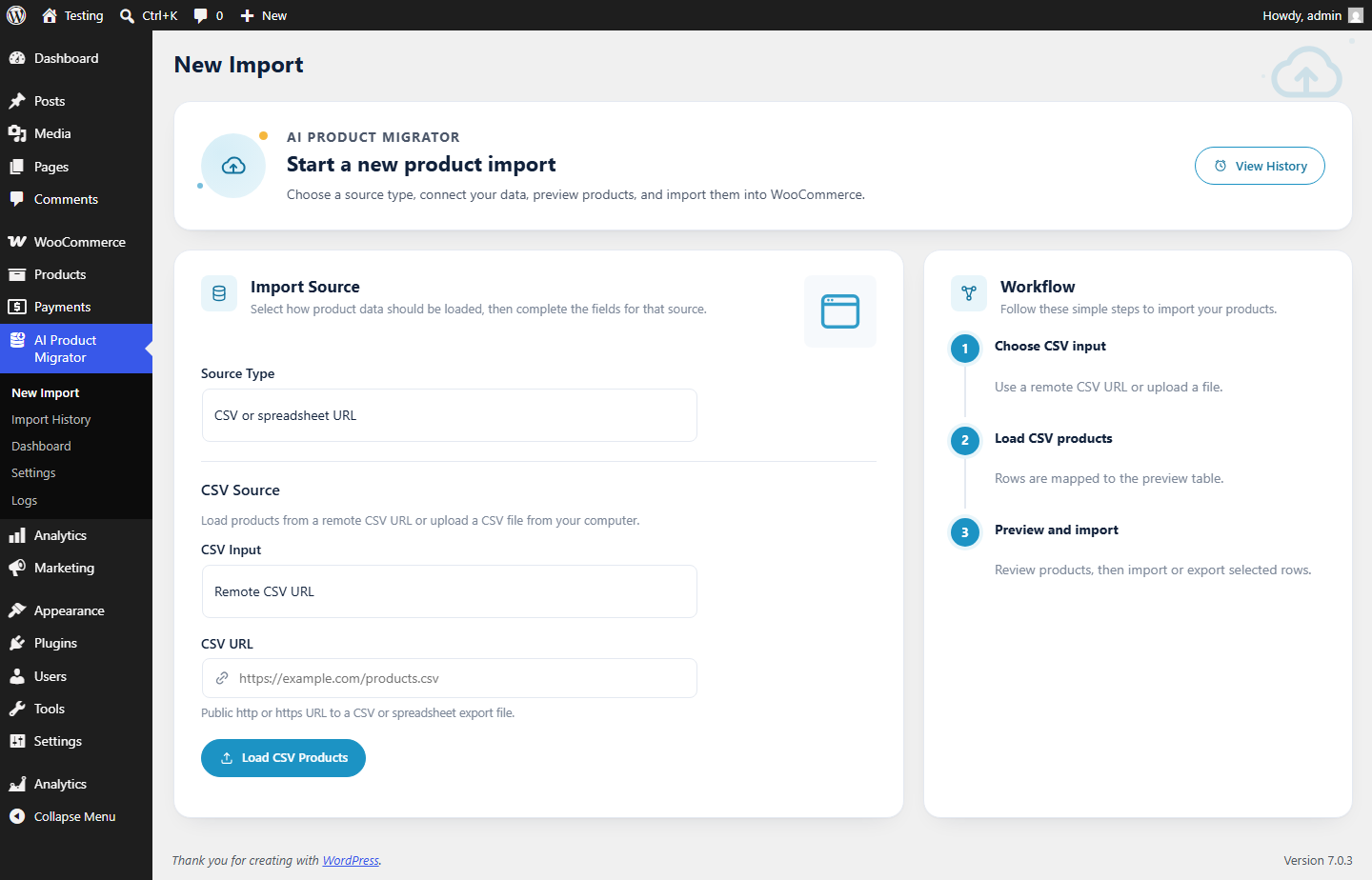
Review before anything is written
Every source funnels into the same preview table: title, price, SKU, stock status, images, categories, and source URL for every product, plus a status badge and local data-quality flags (missing price, invalid discount, no images, missing SKU, suspiciously short title) so problem rows are obvious before you commit to importing them. Nothing is written to your store until you select rows and click Import.
Background-processed, so it survives a closed tab
Scraping a large catalog can take a while. Once you start extraction, it keeps going via WordPress’s background task system (WP-Cron) even if you close the browser tab or navigate away — come back to Import History later and it will have kept working.
Auto-Sync: keep the catalog current on its own
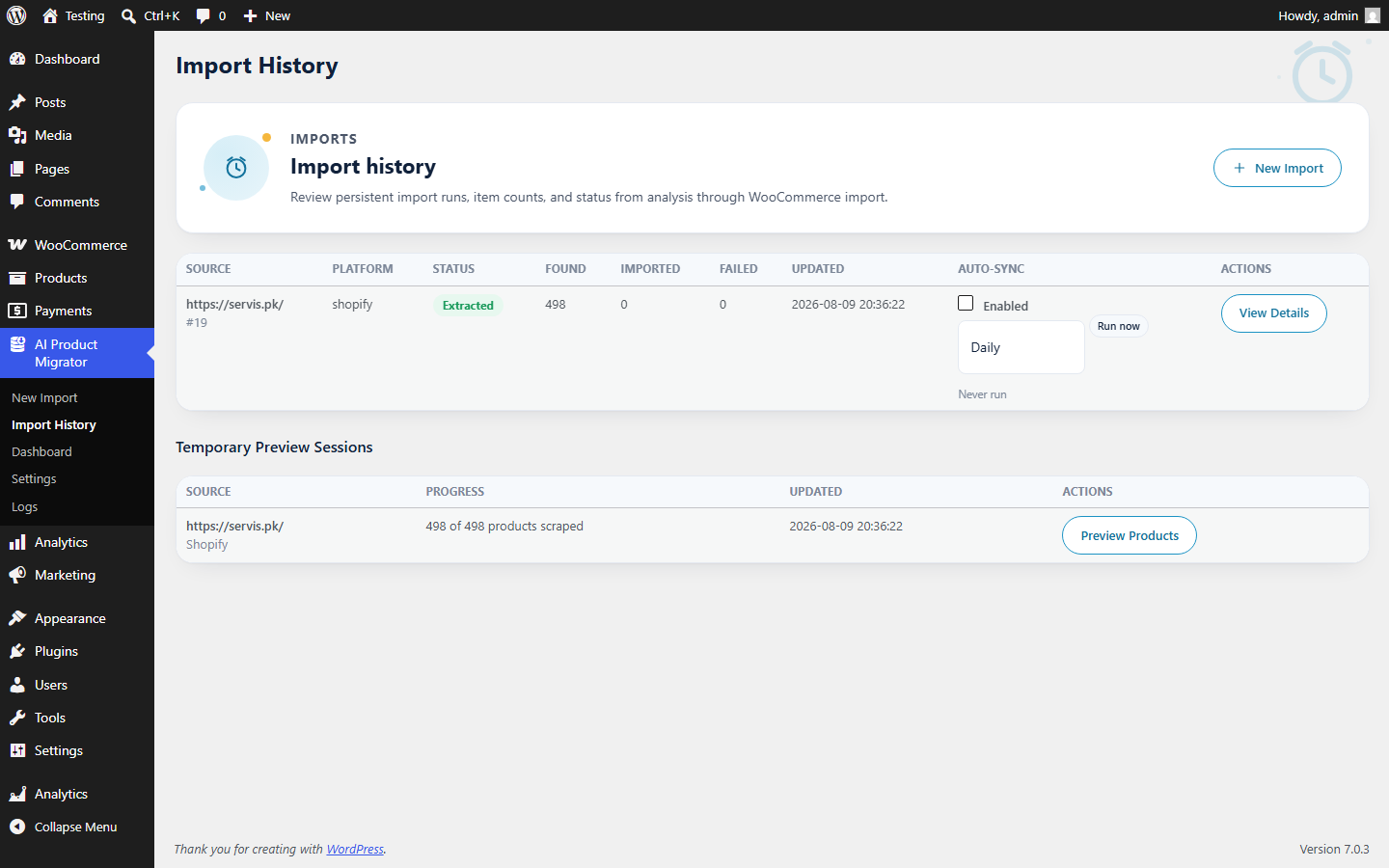
Turn on Auto-Sync for any website or CSV-via-URL import, choose an interval from 15 minutes up to weekly, and the plugin will periodically re-check the source, create any newly discovered products, and update already-imported ones (price, stock, description, images) — entirely in the background via WP-Cron. A companion Protect Manual Edits setting means Auto-Sync will never overwrite a title, price, description, or stock status you’ve since changed by hand. Optional email notifications let you know when a sync run finishes or stops early.
Undo and recover, without digging through the database
One-click rollback
Move every product a specific import created or updated to the Trash, reversible from the standard WordPress Trash screen.
Retry failed items
Re-attempt just the products that failed on a given import, without re-running the whole thing from scratch.
“What changed” view
See exactly which fields (price, stock, title) changed the last time a product was updated by a sync or re-import.
All of this — Auto-Sync controls, rollback, retry, and the per-import status — lives on the Import History screen:
A dashboard, and a full diagnostic log
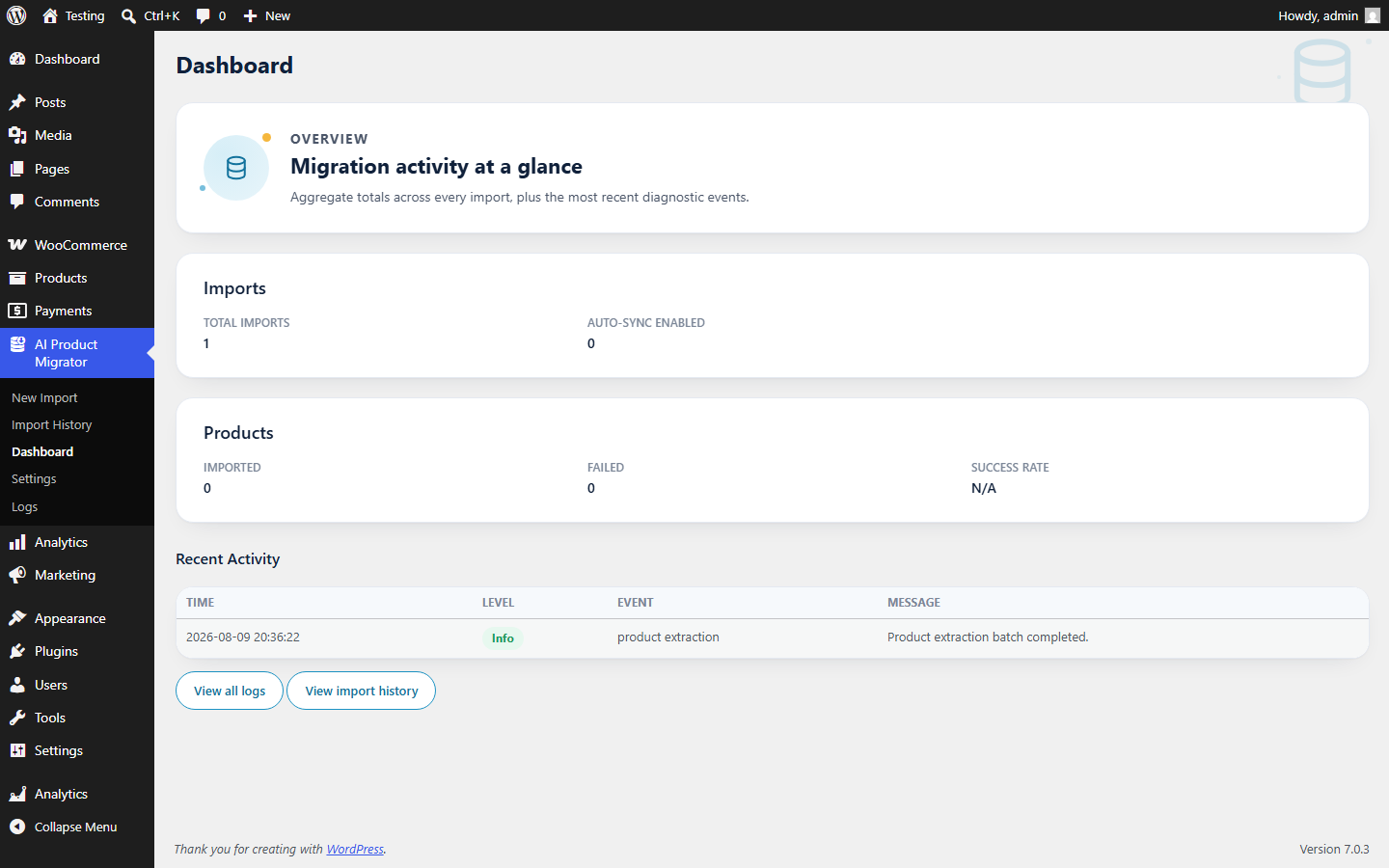
A Dashboard page summarizes totals and recent activity across every import you’ve ever run:
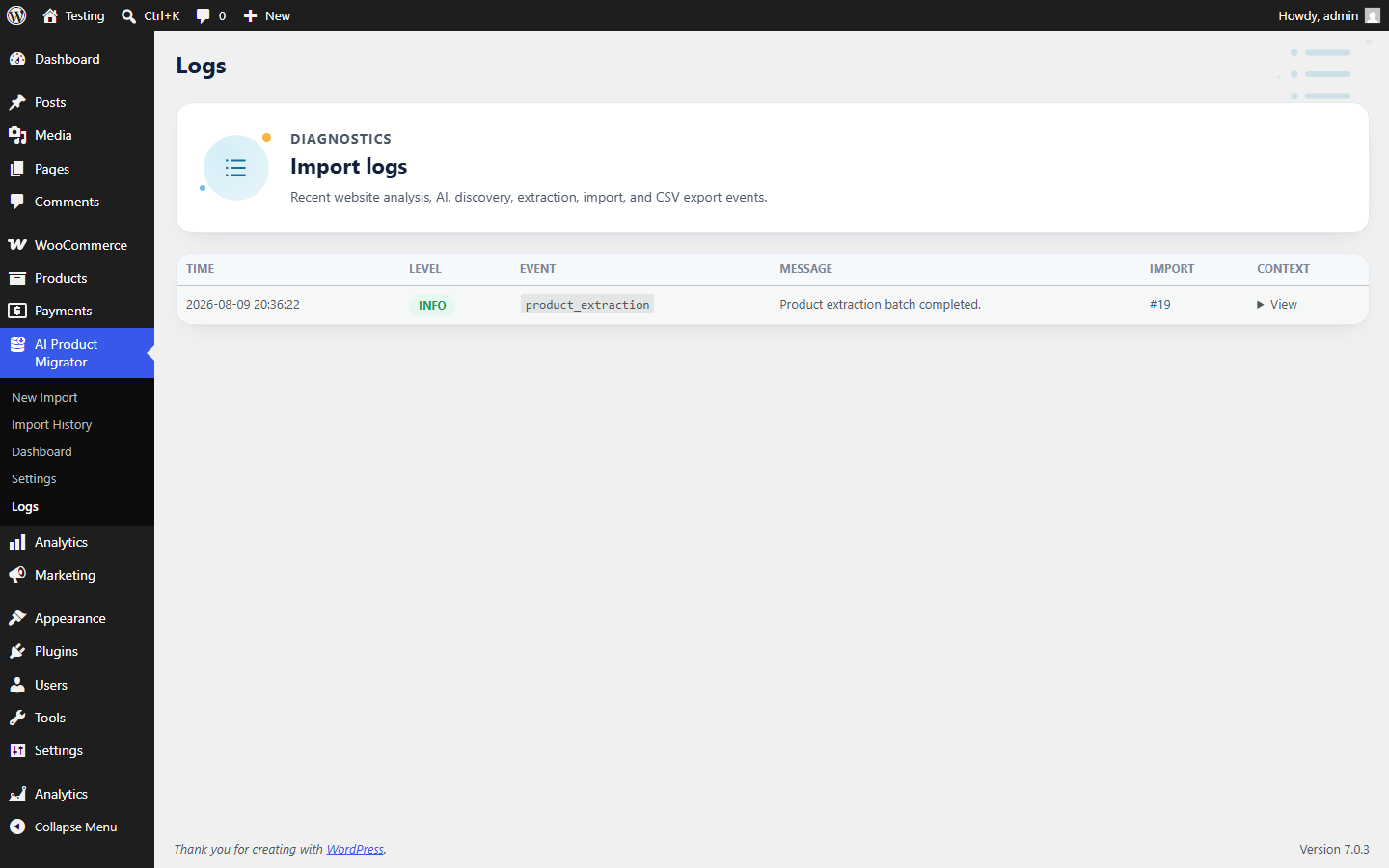
A dedicated Logs screen captures diagnostic events end-to-end — analysis, discovery, extraction, import, and errors:
Optional Gemini AI assistance
Local heuristics (platform signals, structured data, add-to-cart patterns, listing card shapes) run first and handle most sites on their own. When a site is ambiguous or uses a fully custom platform, and only if you’ve added a Google Gemini API key, the plugin asks Gemini to help identify the platform and suggest extraction selectors. Two further AI features are available, both off by default so they never run or cost anything unless you turn them on:
| Feature | What it does |
|---|---|
| AI Content Rewriting | Rewrites scraped titles and descriptions into original wording before they reach the preview table, to reduce duplicate-content risk. |
| AI Category Mapping | Maps scraped category/tag names onto your existing store taxonomy instead of creating near-duplicate categories every import. |
Settings
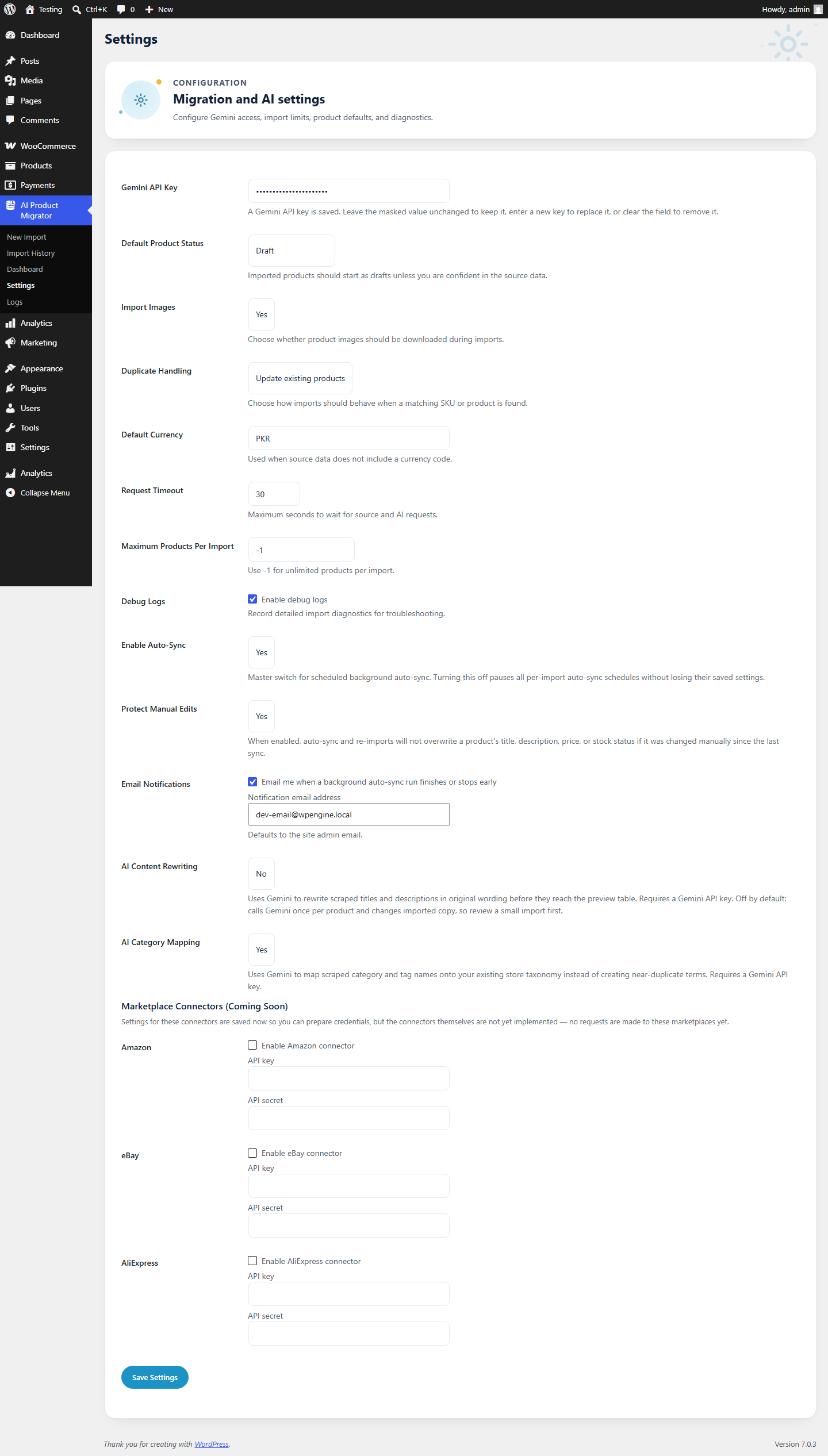
Gemini API key, default product status, duplicate handling, Auto-Sync, Protect Manual Edits, email notifications, the two optional AI features, and the marketplace connector fields all live on one Settings screen:
Also included
- WooCommerce-compatible CSV export of any selected products.
- Configurable duplicate handling — skip, update, or always create new, matched by SKU or source URL.
- Configurable maximum products per import, including unlimited.
- Simple and variable product support, including attributes and variations.
How it works
- Analyze. Enter a source website URL. The plugin fetches the homepage and detects the platform and confidence.
- Discover. It finds product URLs using platform-specific methods (product links, sitemaps, JSON endpoints) plus generic link heuristics.
- Extract. Product pages are scraped in small batches, continuing in the background if you navigate away.
- Preview. Review every product — images, price, SKU, categories, status, and data-quality flags — before anything is imported.
- Import or export. Send selected products straight into WooCommerce, or export them as a WooCommerce-compatible CSV.
- (Optional) Auto-Sync. Turn on scheduled re-sync for that import so new products keep appearing and existing ones stay current automatically.
Requirements
| WordPress | 6.2 or newer |
| PHP | 7.4 or newer |
| WooCommerce | Required, must be installed and active |
| Gemini API key | Optional — only needed for AI-assisted detection, AI content rewriting, and AI category mapping |
| Server | Must allow outbound HTTP requests to the source websites/feeds you import from |
Frequently asked questions
Does this require WooCommerce?
Yes. The plugin creates WooCommerce products, categories, tags, attributes, variations, and images, so WooCommerce must be installed and active. It will not activate without WooCommerce, and deactivates itself automatically if WooCommerce is later switched off.
Do I need a Gemini API key?
No. Website analysis runs a built-in local detector first and handles most WooCommerce, Shopify, and structured-data sites on its own. Gemini is only consulted when local detection is weak or the site looks fully custom, and only if you’ve added a key. AI content rewriting and AI category mapping also require a key and are both off by default.
Can I import from Shopify stores?
Yes — the plugin detects Shopify sites and discovers products from their public JSON product feeds.
Am I allowed to scrape any website I want?
The plugin doesn’t check copyright or terms-of-service on your behalf. You’re responsible for only importing product data from websites, CSV files, and APIs you have the legal right to use.
What is Auto-Sync and how do I turn it on?
Auto-Sync automatically re-checks a source on a schedule, creates products for anything newly discovered, and updates already-imported products if the source has changed. It’s off by default. Turn it on per-import from the import’s detail screen under Import History, and choose an interval from 15 minutes up to weekly.
Will Auto-Sync overwrite prices or text I’ve edited by hand?
Only if you want it to. Turn on Protect Manual Edits in Settings and the plugin will leave a field alone once it detects you’ve changed it since the last sync, instead of overwriting it with the source’s current value.
What if some products fail to import?
Failed rows stay visible with an error message. Use Retry Failed Items on that import’s detail screen to re-attempt just those rows. If the import has Auto-Sync enabled, failures are also implicitly retried on the next scheduled run.
Can I undo an import?
Yes — Rollback Import moves every product that import created or updated into the Trash, which you can restore or permanently delete from the standard WordPress Trash screen.
What does it actually send to Google’s Gemini API?
Only a cleaned copy of a page’s HTML (scripts, styles, and comments stripped) when AI-assisted detection is triggered, or the specific product text/category names you’re asking it to rewrite or map when those optional features are enabled. Your API key is stored in your site’s options, never exposed to the frontend, and masked in the settings screen after saving.